
Receive a company invitation
Receive a company invitation
Receive invitation and access instructions through your own Google account authorized by the company. Each employee uses their own Google account rather than a shared account.
Installation — get the desktop app
See How to use for the app installation guide.
Google sign-in
Follow your company’s access instructions and sign in with your own Google account. Access to the company workspace is restricted to accounts authorized by the company. The Google account used to sign in to the company workspace is separate from the account used to connect an AI model.
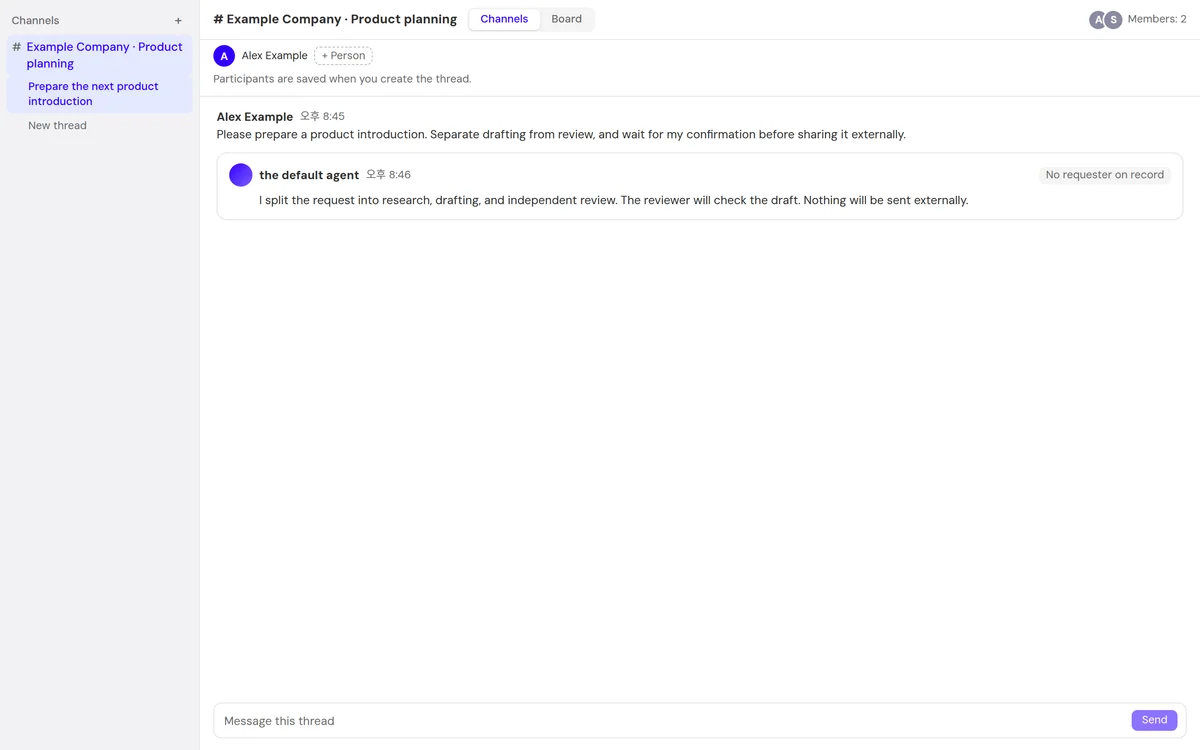
Assign work through channels, threads and cards
In the company workspace: channel → thread → work request → check cards. Channels hold conversations by project; threads are conversations that start a particular piece of work. Check task titles, assignees and status on cards. When a decision is needed, check the questions and options in the conversation. If none match your answer, use ‘Write your own’ to share your input. ‘Write your own’ shares input rather than finalizing a decision immediately; wait for a follow-up proposal from the AI specialist.
Invitation and connection checklist
Content not provided
- If you have no company invitation or it has been withdrawn, ask your company administrator whether your account is authorized for access.
- Check that you are using your own Google account authorized by the company.
- If a different company appears, check the official organization-switching instructions provided by your company.
- For the installation environment, check your company’s installation instructions.
- If you cannot connect, check the access instructions from your company.